> For the complete documentation index, see [llms.txt](https://docs.landytech.com/llms.txt). Markdown versions of documentation pages are available by appending `.md` to page URLs; this page is available as [Markdown](https://docs.landytech.com/faq-and-troubleshooting/viewing-logs.md).
# Viewing Logs
Monitor and troubleshoot your API integration with real-time access to all requests and responses within your account.
The API Logs page provides a complete audit trail of every API request made to the Sesame Data APIs. Use this tool to debug integration issues, monitor API usage, verify successful requests, and track performance metrics.
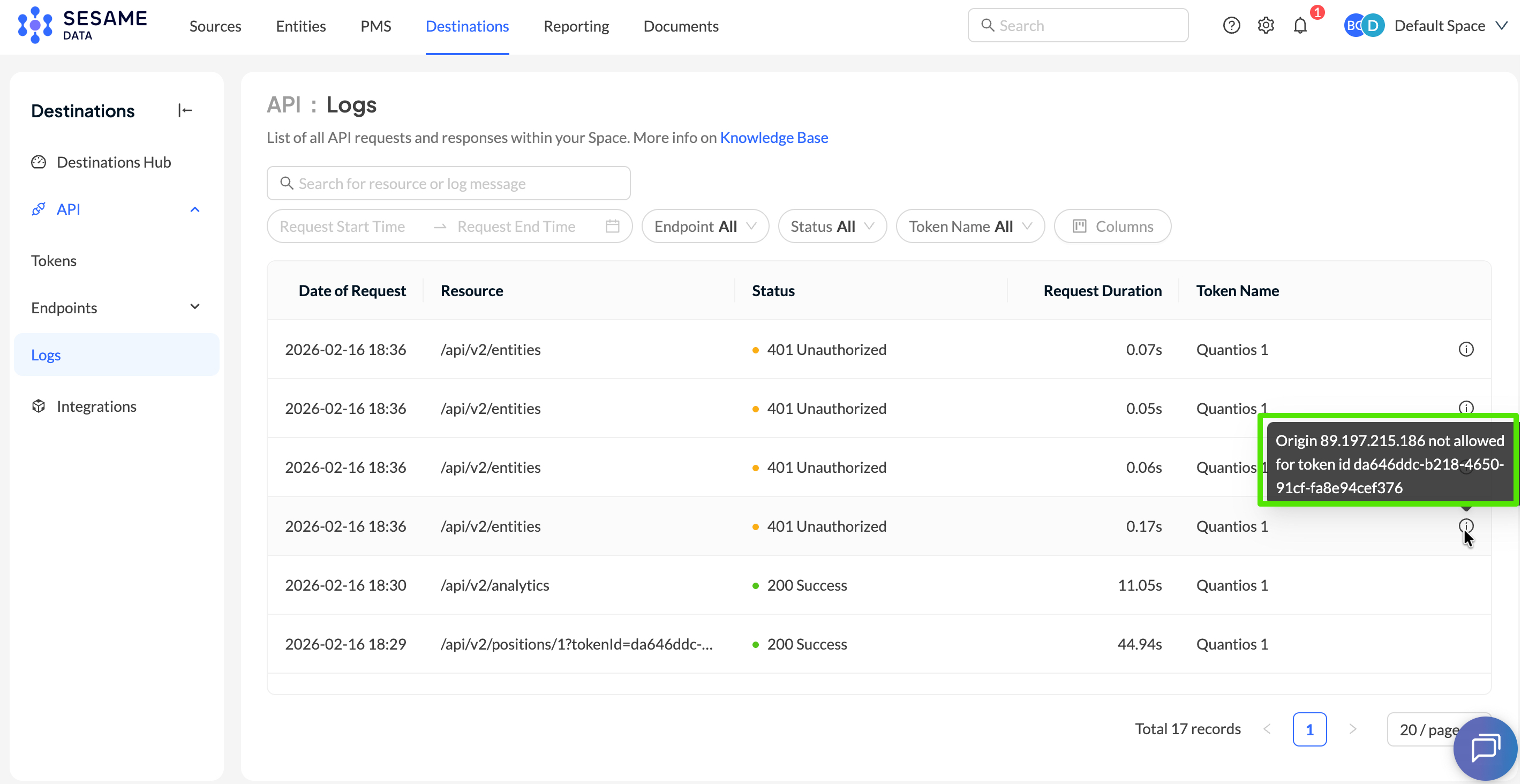
All requests made to your account are automatically logged and displayed in the logs table. Each log entry includes:
* Date of Request: Timestamp when the API request was received (UTC)
* Resource: The API endpoint that was called (e.g., /api/v2/entities, /api/v2/analytics)
* Status: HTTP response code and message
* 200 Success - Request completed successfully
* 401 Unauthorized - Authentication failed or credentials are invalid
* 403 Forbidden - Authenticated but lacks permission to access the resource
* Other standard HTTP status codes
* Request Duration: Time taken to process the request (in seconds)
* Token Name: Identifier of the API token used to authenticate the request
{% hint style="info" %}
Please note that **the Sesame Data logs do not store** any personal or financial information - they only retain technical errors and details about the requests made.
{% endhint %}
## How to view logs
Access `Destinations > API > Logs` to see logs across all endpoints, and `Destinations > API > [Select endpoint] >Logs` to view logs for a specific endpoint.
#### Understanding errors
Where a request had an error, details about the error will be seen on the right of the logs table. For example-
### Filtering Logs
Refine your log view using the following filters:
#### Time Range
* Request Start Time: Show requests from this date/time onwards
* Request End Time: Show requests up to this date/time
#### Endpoint Filter
Filter by specific API endpoint to focus on particular resources:
* /api/v2/entities
* /api/v2/transactions
* /api/v2/positions
* /api/v2/analytics
#### Status Filter
Filter by response status to quickly identify issues:
* All - Show all requests regardless of status
* Successful (2xx) - Show only successful requests
* Client Errors (4xx) - Show authentication and permission errors
* Server Errors (5xx) - Show server-side errors
#### Token Name Filter
Filter by API token to track usage by specific integrations or applications.
### Common Use Cases
#### Debugging Authentication Issues
If 401 errors are appearing:
1. Filter logs by Status: Client Error
2. Verify the Token Name matches active credentials
3. Confirm the requesting user's IP address is whitelisted (if applicable)
4. Check that credentials haven't expired
#### Monitoring API Performance
Track request duration to identify:
* Slow-performing queries that may need optimization
* Patterns in response times across different endpoints
* Impact of date ranges or result limits on performance
#### Auditing API Usage
* Filter by Token Name to see activity from specific applications
* Use the time range filter to generate usage reports for specific periods
* For a bulk export, contact Landytech
#### Verifying Data Requests
After making API calls, users can check the logs to confirm:
* Requests were received and processed successfully
* Correct endpoints were called
* Expected response times were achieved
### Best Practices
* Check logs immediately when troubleshooting integration issues
* Filter by recent time periods for faster results when debugging
* Monitor 401/403 errors which may indicate credential or permission issues
* Review request durations to optimise query parameters for better performance
* Use Token Names to distinguish between production and development environments